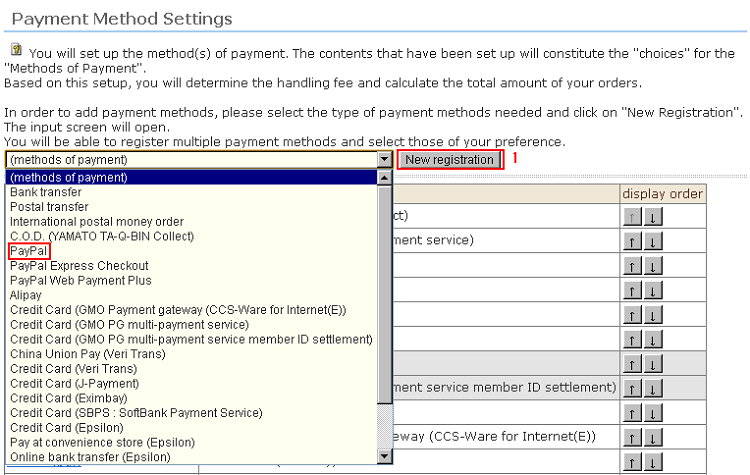
Procedure
1. Select the type of payment method you want to register and click the [New registration] button. The "New Registration" screen is displayed.
In this example, let's register PayPal as the new payment method.
* Two or more of the same methods can be registered as the payment method.
Example) Display the PayPal payment method as two names: "PayPal" and "Creditcard". This prevents excluding customers who assume they cannot pay by credit card via PayPal.
2. Enter the display method.
(* The screen example is for "PayPal". The same also applies to other display methods.) )
[*] indicates required items.
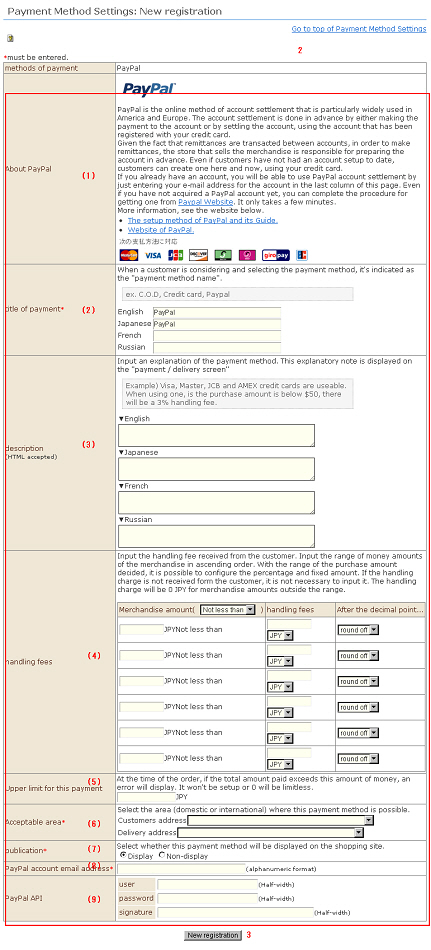
(1) Description of settlement method
This description details the features of each individual settlement method and contract procedures. A contract with the respective payment service is required to use the selected payment method.
(2) Title of payment*
This is displayed as the "Name of the payment method" when a customer is considering or selecting a payment method.
Example) Credit card, C.O.D., PayPal
(3) Description
Enter a description about the payment method. These details are displayed in the payment/shipping fee screen.
Example) Visa, JCB and AMEX credit cards can be used. When using these credit cards, a 3% commission is charged for orders of $500 or below.
(4) Commission
Enter the commission to be charged to the customer. Enter the amount of the products in a range starting with the smallest amount.
You can determine the range by purchase amount, and set the commission as a percentage and a fixed amount. When the customer is not to be charged a commission, there is no need to enter this item. The commission outside the range for the amount of the product is 0 Japanese yen.
* You can select from "rounding off to the nearest whole number" and "rounding down" for handling of fractions for commission calculated by "percentage."
(5) Upper limit for this payment
You can set the upper limit for the total payment amount during orders.
(6) Acceptable area
Select the area for the orderer/delivery destination (own country or outside own country) that this payment method may be applied to.
The customer can select "Domestic only", "Overseas only" or "Unrestricted."
(7) Publication*
Select whether or not to display this payment method on the shopping site.
(8) PayPal account e-mail address*
Enter the e-mail address of the PayPal account.
(9) Paypal API
By setting this, the PayPal settlement result can be accurately acquired.
In addition to when PayPal settlement is completed, the results of settlements not completed once per day can be re-acquired by inquiring with PayPal into the settlement status from this system.
■To set PayPal API
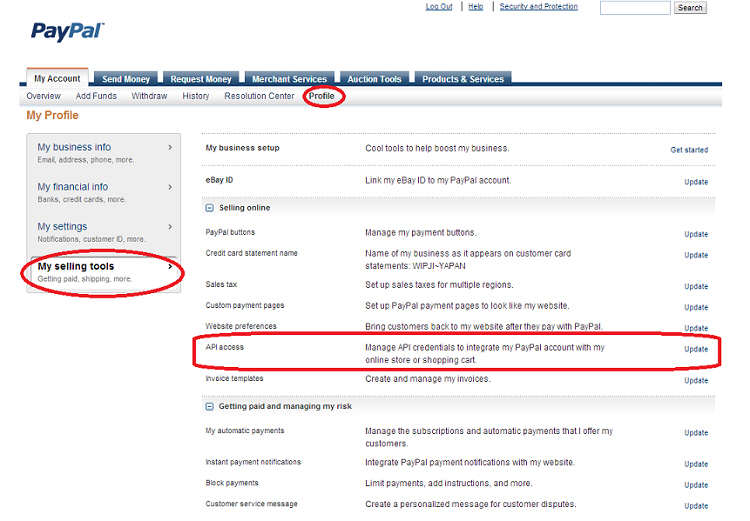
1. Log into the PayPal management screen with the PayPal account currently set to this system, and select "My selling tools" from the "Profile" tab.
From the screen that opens, click the "API access" item.
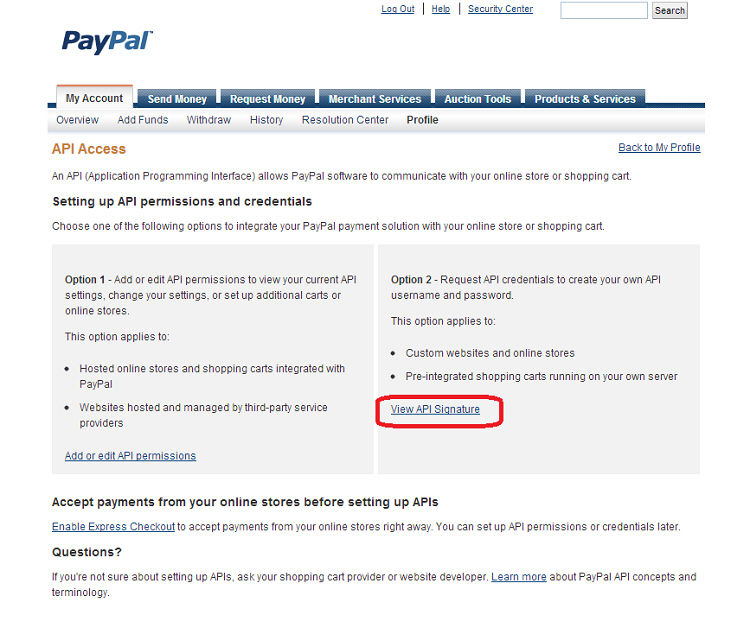
2. The "API Access" management screen opens. Click "Request API credentials" ("Display API signature" when API has already been used).
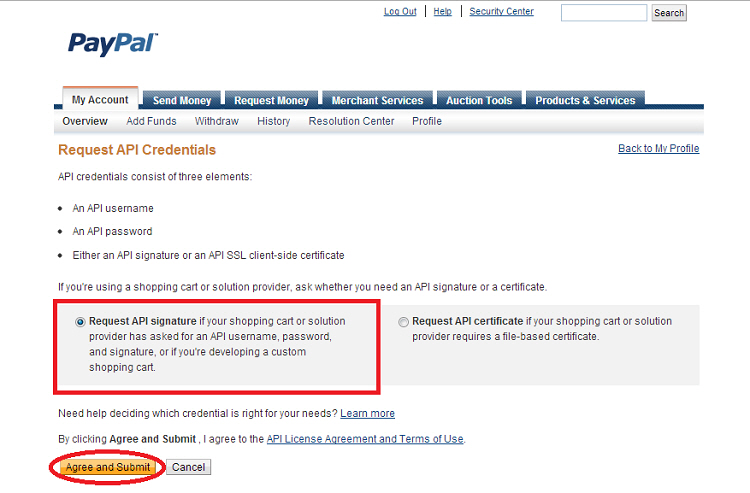
3. The "Request API Credentials" page opens. Select "Request API signature if your shopping cart or solution provider has asked for an API username, password, and signature, or if you're developing a custom shopping cart.", and click the [Agree and Submit] button. (This screen will not be displayed if API has already been used.)
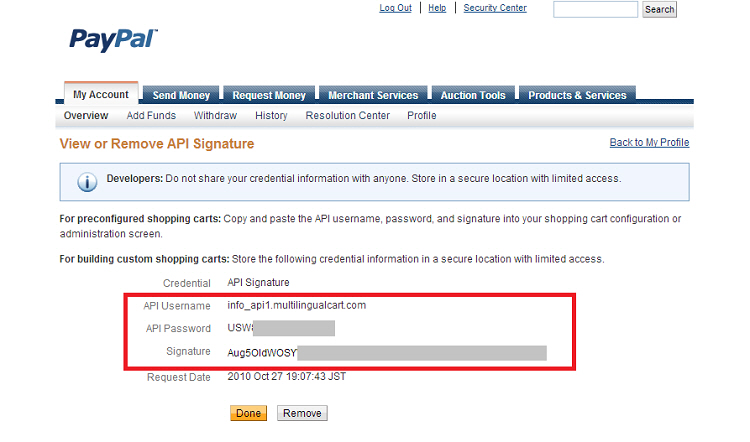
4. The API information is displayed. Enter this information in this system's management screen.
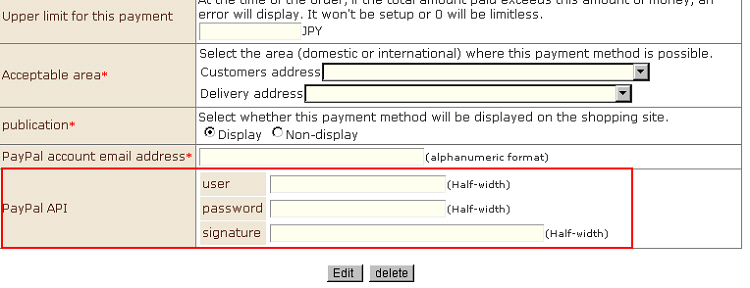
5. The screen returns to this system's management screen. Select "PayPal" from the "Payment Method Settings" currently in use. Enter the PayPal API user name, password, and signature in the PayPal API fields.
3. Click the [New Registration] button to complete registration.