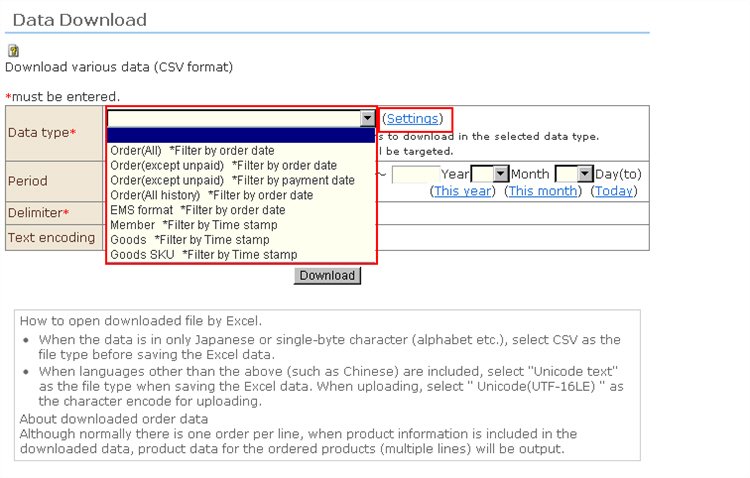
You can download various data in CSV format.
Procedure
1. Type of data
Select the type of data to download
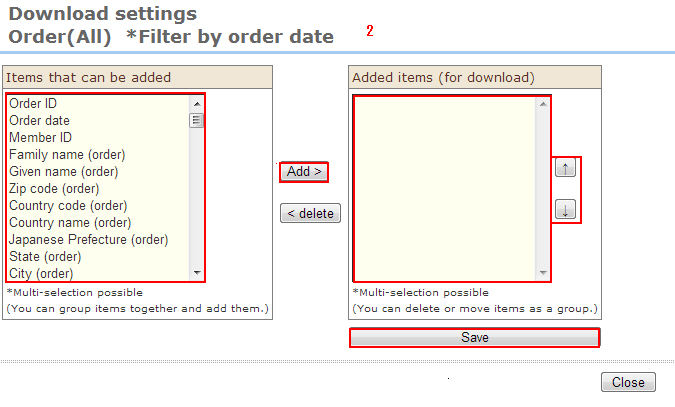
2. Click "Item setting".
(1) Select additional items.
(2) Click [Add] to add additional items to "Download items".
(3) You move items and change their order by clicking [↑] [↓].
(4) Click the [Save] button.
3. Target period
You can filter the data to be downloaded to within a specified period.
Note that the date (order date, payment date, registration date, etc.) targeted as the specified period differs according to the type of data.
When a target period is not specified, all data can be downloaded.
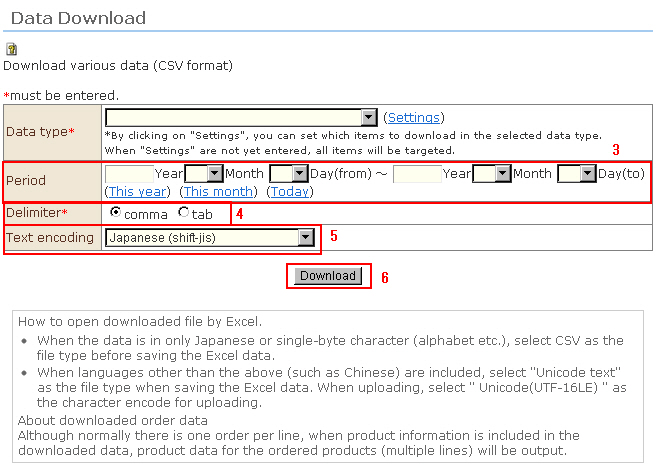
4. Select "Comma" or "Tab" as the delimiter character.
When delimiting by commas is selected,
※ and English addresses contain "," (commas), ' " " ' (double quotation marks) will automatically be added and escape processing will be performed.
5. Select the character encoding.
6. Click the [Download] button.
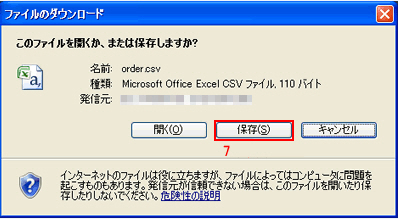
※ <To open a downloaded file in Excel...>
When the data is only Japanese language text or 1-byte (alphabet characters, etc.), save the data with the delimiter character set to "Comma" and character encoding in "Japanese(shift_jis)" format to your PC.
When the data contains languages other than the above (e.g. Chinese), save the data with the delimiter character set to "Tab" and character encoding in "Unicode(UTF-16LE)" format to your PC.
Start up Excel, and drag or import the download file by [Open file].
<Downloaded received order data>
Normally, received order data per order consists of one line. However, if the download items contain product information, received order data is output for the number of order products (i.e. in two or more lines).