Procedure
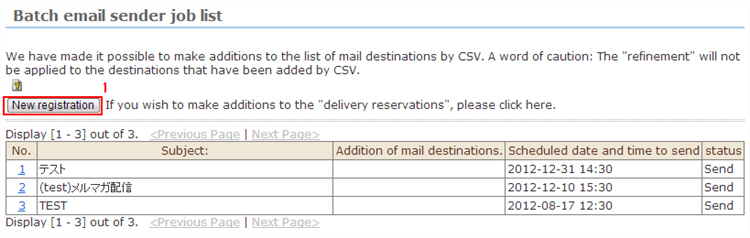
1. Click the [New registration] button.
2. Enter the e-mail information.
[*] indicates required items.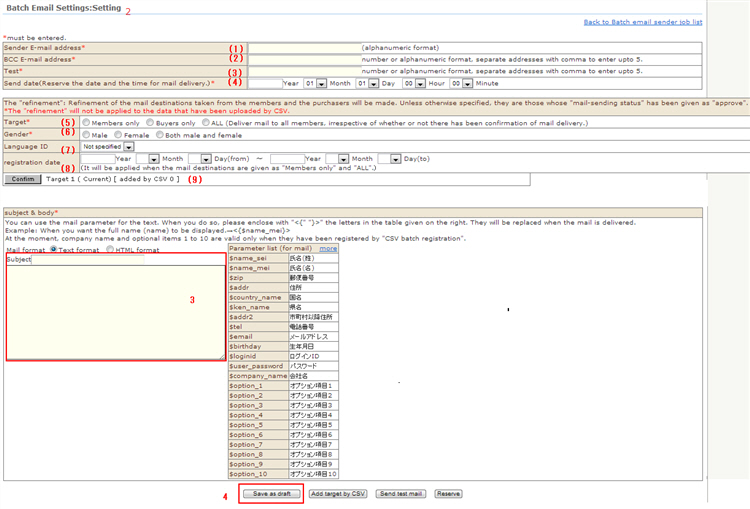
(1) Sender e-mail address*
This e-mail address is displayed at the send destination.
(2) BCC (person in charge) e-mail address*
When mail is distributed, the first e-mail is distributed by BCC.
(3) Test send destination e-mail address*
※ If two or more persons in charge want to receive e-mails, enter the "BCC (person in charge) e-mail address" and "test send destination e-mail address" delimited by commas. Up to five persons in charge can be specified.
* When the e-mail address of a cellphone has been set as BCC, text might be corrupted since the majority of cellphones in Japan support only "Shift-JIS" character codes.
Set the send conditions.
(4) Send date/time*
Set the send date/time.The send time can be set in Japan time and in 30-minute increments.
(5) Send target*
Set the send target."Members only", "Buyers only" and "Everyone (distributed to all members regardless of e-mail distribution approval)" can be set.
(6) Gender*
Set the gender."Male", "Female" and "Both male/female" can be set.
(7) Language ID
Filters the language ID currently registered in Member Management. "Not specified" also can be set.
* Note that when "Not specified" is specified, mail with content entered in two or more languages can be distributed. However, if the e-mail software at the receiver end does not support a language, that language might be displayed corrupted.
* The display language of selection items is the language set to "use" in Language Settings.Display languages set as "under construction" are not displayed in selection items.
(8) Registration date
The date that the member was registered can be selected. This is applied when the send target is "Members only" and "Everyone".
(9) Confirm number of sent e-mails
You can confirm the number of sent e-mails by the [Confirm number of sent e-mails] button.
※ The [Confirm number of sent e-mails] button is displayed once batch e-mails have been temporarily saved.
3. Enter the subject and content.
You can select between "text" and "HTML" as the format of e-mails.
Enter the subject and content of e-mails in the display language of the language ID selected at the send conditions.
Composing e-mail sentences using a text editor, for example, and copying & pasting these is useful for learning the number of text characters.
* E-mail variables can be used in content.
Like, <{xxxxxx}>, enclose variables in the figure on the right with <{ }>.
* The number of accesses to each URL and number of received orders can be measured by issuing a URL for measuring the effectiveness of the "top page" or "product details page" in promotion management and posting this in the batch e-mail.
4. When registration is finished, click the [Temporary save] button.
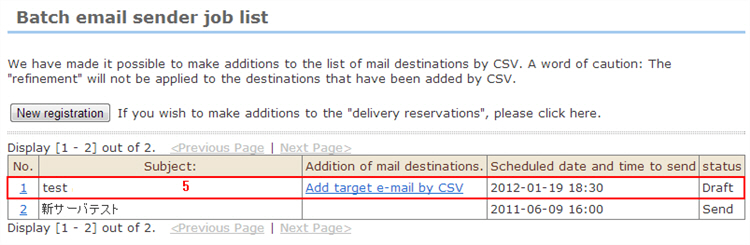
5. The batch e-mail is temporarily saved and is displayed in the batch e-mail reserved for sending registration list.