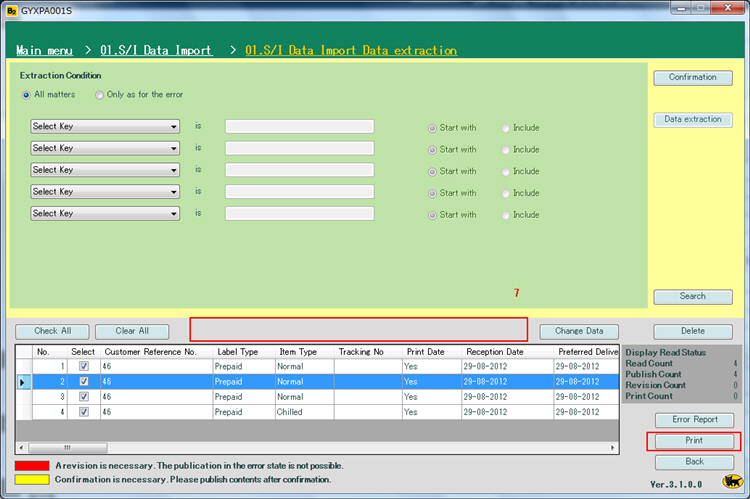
You can output received order data in a format that is compatible with the YAMATO TRANSPORT B2 invoicing system for each country.When payment has been confirmed (in the case of bank remittance) and the product is ready to be shipped, output the "courier service invoice."
Procedure
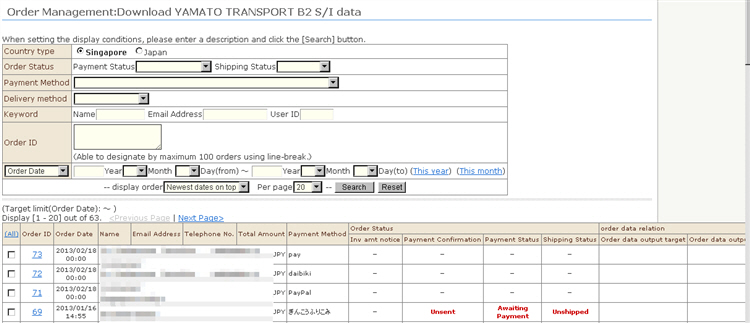
1. Click [Download B2 S/I data] from the Sales Management menu. The target list will be displayed.
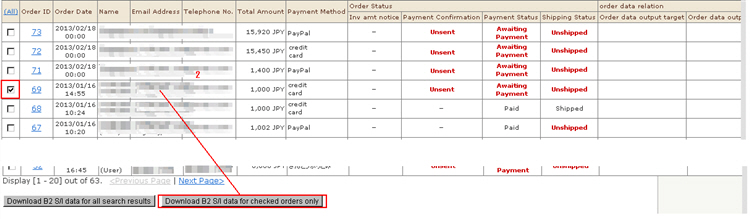
2. Select the received order you want to output the invoice for, and click the [Download B2 S/I data for checked orders only] button.
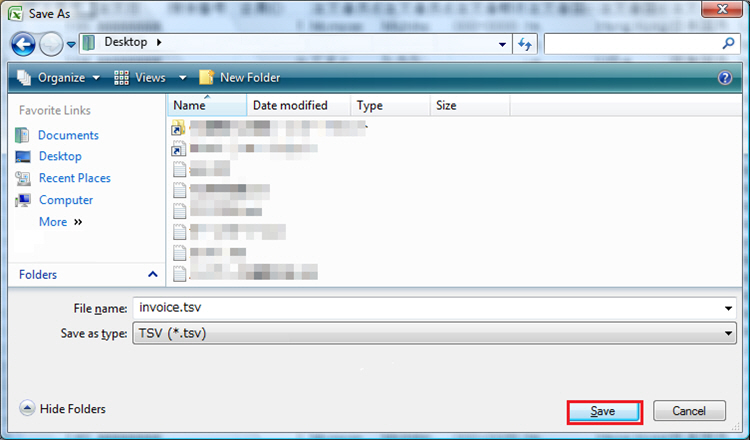
3. Save the data at a desired directory.
Default file names are invoice.tsv (B2 for Singapore) and invoice.csv (B2 for Japan).
4. Start up B2.(The following example shows screens from the Singapore version of B2.)
Prepare the B2 ID, password, and manual.
Procedure
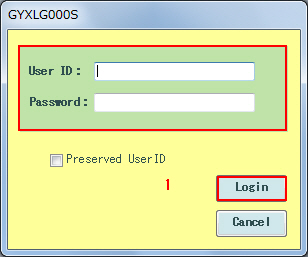
1. Start up B2, enter the ID and password, and click the [Login] button.
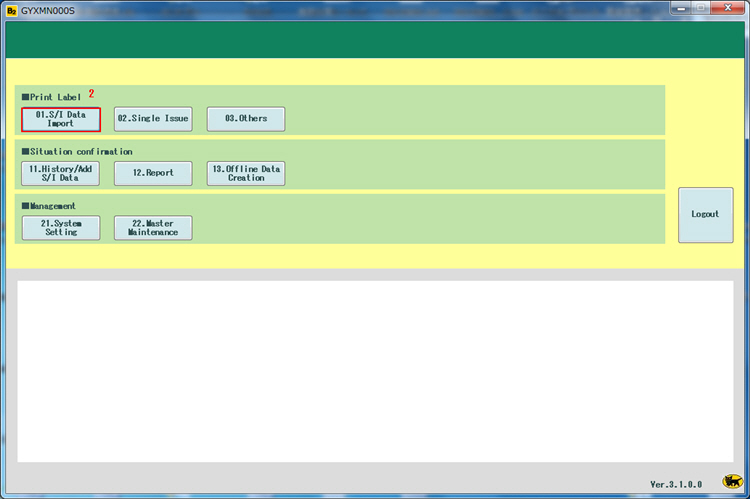
2. When the main menu is displayed, click [01.S/I Data Import].
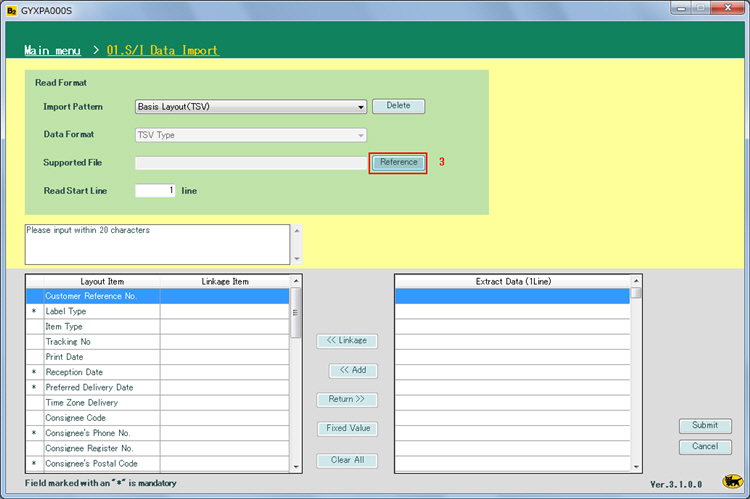
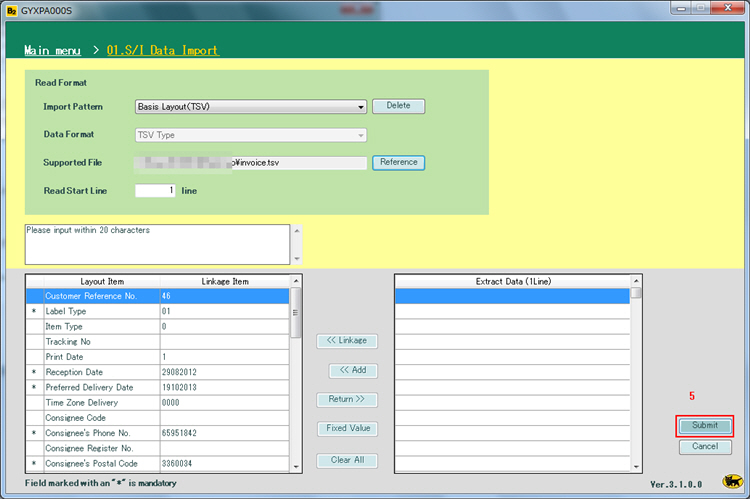
3. The data import screen will be displayed. Click the [Reference] button.
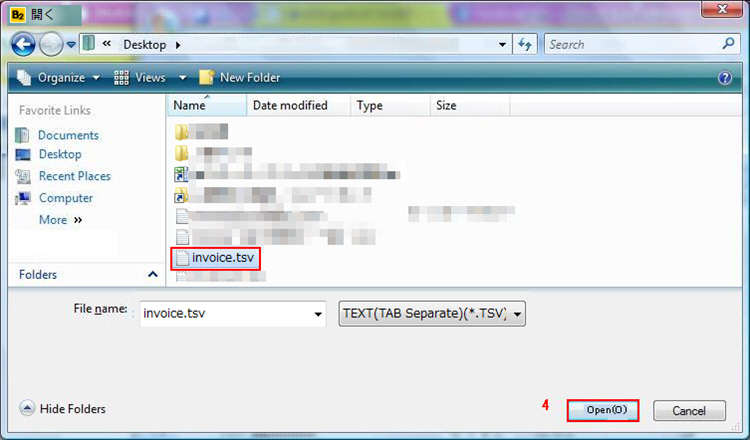
4. The file selection screen will be displayed. Select the file you saved earlier on, and click the [Open] button.
5. When you have selected the file, click the [Submit] button.
6. The import result is displayed.If the data is in error, correct the data in the screen.
※1 A "not entered" error will be displayed if the preferred delivery date is not entered at the net shop.
Be sure to enter the delivery date at [Preferred Delivery Date].
※2 The program does not include a check based on the postal code at the net shop.
When an error occurs, be sure to correct the [Consignee's Postal Code] and [Shipper's Postal Code] fields.
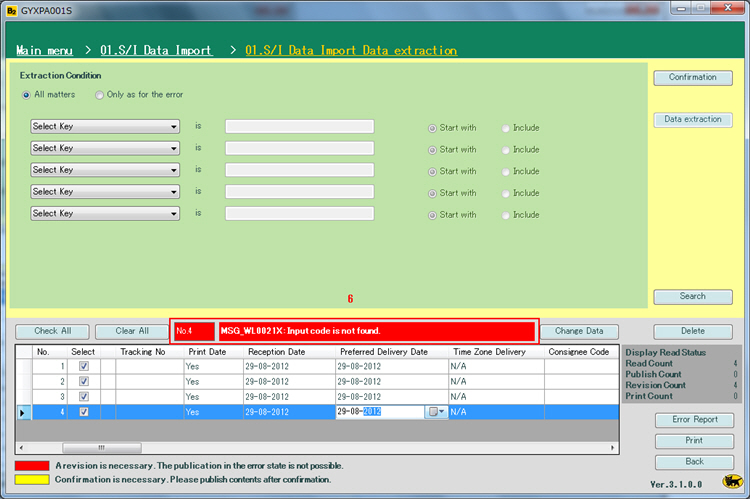
7. Confirm that the error has been removed, and click the [Print] button.
※ From here on, output invoices referring to the B2 manual.