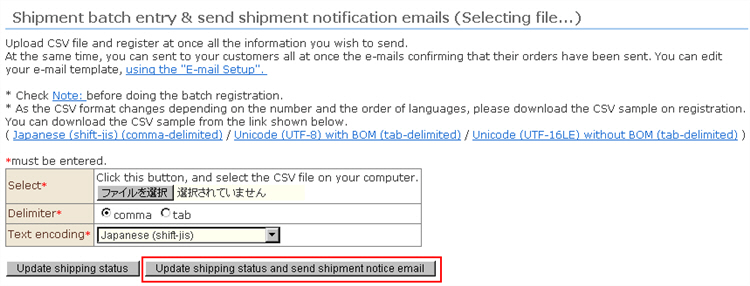
You can upload a CSV file to batch register "shipment data."
You can also batch send "shipment notification e-mails" to customers at the same time.
E-mail templates can be edited at Email Settings.
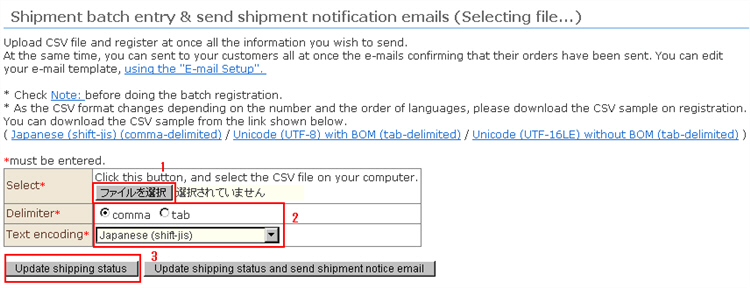
1. Select the file.
2. Select the delimiter character and character encoding to suit the content of the file you created.
※ Note: Select not the "format of the downloaded file" but the format of the actually saved CSV file. For example, when downloading a CSV sample file in the format "Japanese(shift-jis)(comma delimiter)" and enter Chinese, etc. in an Excel file and save it in "Unicode text" format, the file will be saved as "Unicode(UTF-16LE) with BOM" and "tab delimiter".
3. Click the [Confirm shipping information] or [Update shipping status and send shipment notice email] button. The file is uploaded and checked.
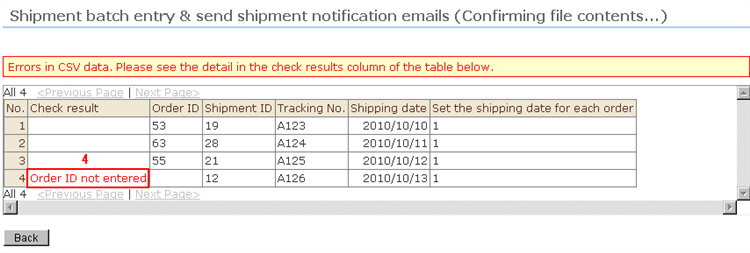
4. If a problem is found in the content of the data, error details will be displayed in the "Check Result" field.
Referring to the error details, correct the CSV file. Click the [Back] button, and repeat steps 2 and 3 until the error no longer appears.
5. If the content of the data can be imported, the [Upload] button is displayed between the list of items scheduled to be registered.
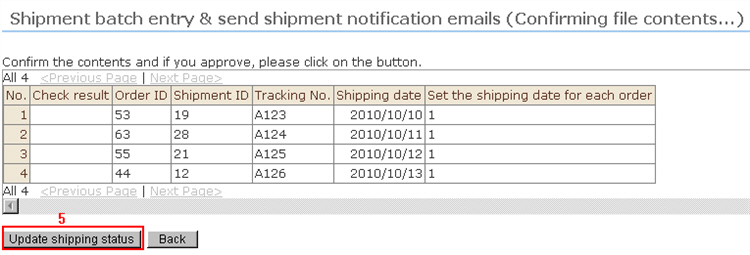
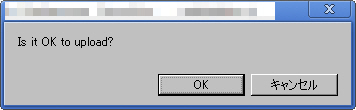
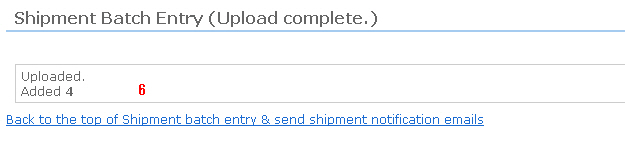
6. When the [Upload image files] button is clicked, the upload is completed and the result is displayed.
7. To send a shipment notice e-mail at the same time as registration of shipment information, click the [Update shipping status and send shipment notice email] button at step 3.