"SKU Products No. & name", "Price (Domestic price/International price)" and "Assigned quantity in stock" of registered product SKUs can be batch edited by a CSV file.(Product names and option names cannot be edited.))
※ This is not new registration.
* Before batch editing, read the precautions.
* Download samples when creating the CSV file since the CSV format changes according to the number of supported languages and sort order.
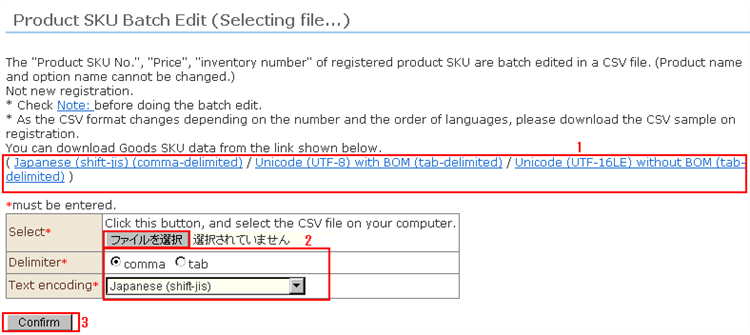
1. Click the link to download the current product information, and edit its content.
2. Select the file, and select the delimiter character and character encoding to suit the content of the file you created.
※ Note: Select not the "format of the downloaded file" but the format of the actually saved CSV file. For example, when downloading a CSV sample file in the format "Japanese(shift-jis)(comma delimiter)" and enter Chinese, etc. in an Excel file and save it in "Unicode text" format, the file will be saved as "Unicode(UTF-16LE) with BOM" and "tab delimiter".
3. Click the [Confirm] button. The file is uploaded and is checked.
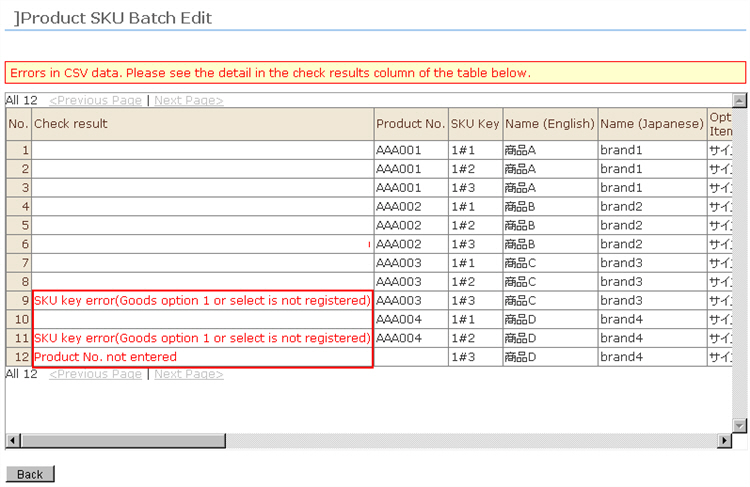
4. If a problem is found in the content of the data, error details will be displayed in the "Check Result" field.
Referring to the error details, correct the CSV file. Click the [Back] button, and repeat steps 2 and 3 until the error no longer appears.
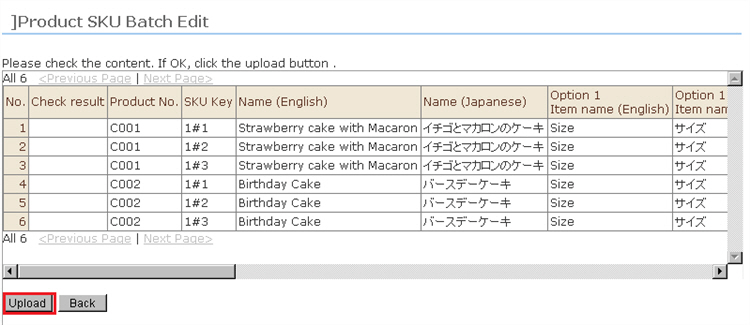
5. If the content of the data can be imported, the [Upload] button is displayed between the list of items scheduled to be registered.
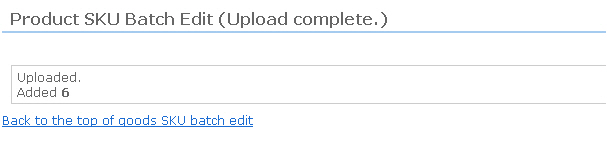
6. When the [Upload image files] button is clicked, the upload is completed and the result is displayed.