You can program a discount sale for a specified period for each individual product.
When using the sale function, confirm that "Sale function" in "Basic Information Settings" is selected.
If it is not selected, select it and then prepare for the sale.
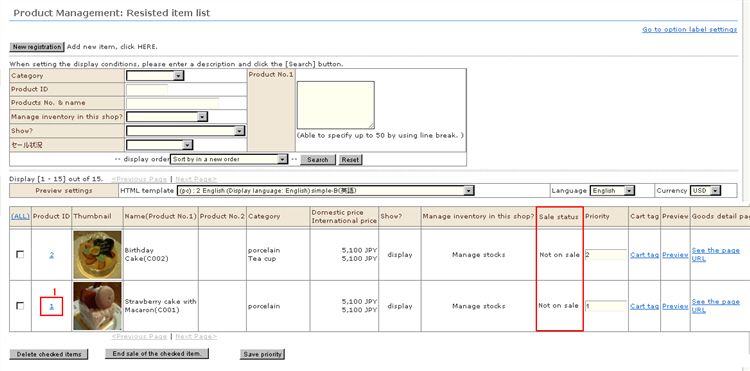
1. When the sale function is enabled, "Sale status" is displayed in "Product Management: Registered item list". Click the product ID targeted for sale.
2. Enter the sale setting details.

(1) Sale status: Displays the status of this product when the sale function is enabled. Statuses are as follows:
・ Preparing to start sale |
The product is waiting for sale start processing. |
・ Sales under way |
The sale is under way. |
・ Sale start error |
Start of sale caused some error. Check the supplementary explanation. |
・ Not on sale |
The sale period has not been set or the product is not included in the sale. |
(2) "Sale start/end date": Specifies the date for starting and ending the sale.
The sale start time can be specified in 10-minute units. When "Immediately" is clicked, the shortest sale start date is entered.
(3) "Sale price (domestic/overseas)": When the product is managed by item management, enter the selling price during the sale at "Sale price (domestic/overseas)".
※ Though "Sale start/end date" can be specified even if the sale price is "0", the sale will not be started.
3. When the product to be put in the sale is managed by SKU management, enter the following sale price at "SKU Management", too.
(No entry will result in an error, and the sale will not be started.)

(1) Sale price (inside your country)
(2) Sale price (outside your country)
4. Click the [Edit] button for product SKU.
5. Click the [Edit] button for product information to complete registration.