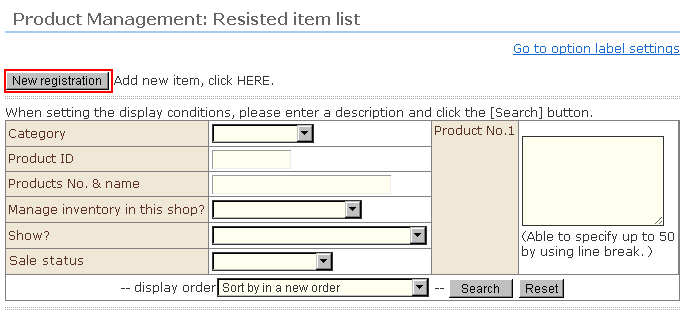
1. Click the [Add new] button.
2. Enter the detailed information of the product.
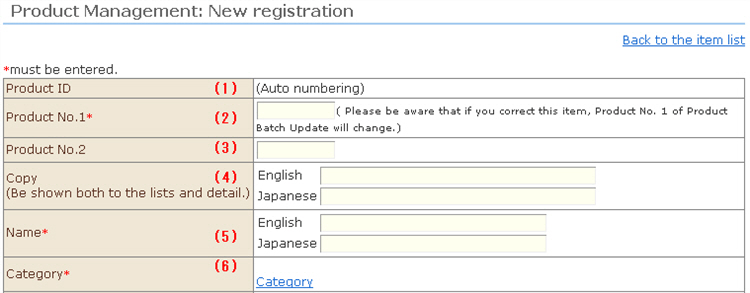
(1) Product ID*
This is the ID of the target product.
(The ID will be automatically assigned.)
(2) Products No.1 & name*
This text string can be set by the customer for each individual product. * When batch registering products or SKU, Products No.1 & name becomes the key.
(3) Products No.2 & name
This text string can be set by the customer for each individual product.
(4) Copy
You can register the features of the target product as catch copy.
(This is shown in both the lists and details.)
(5) Name*
Enter the product name.
(6) Category*
The category to which the product belongs can be set. Click the [Category] button, and select the category to which the product belongs. (Two or more can be selected.)
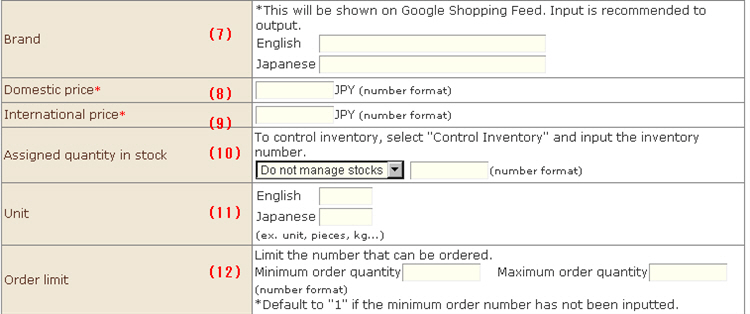
(7) Brand
Register this when posting in Google Shopping Feed.
(8) Domestic price*
Register the selling price for inside your country.
(9) International price*
Register the selling price for outside your country.
(10) Assigned quantity in stock
Select "Inventory Management" and enter the assigned quantity in stock to perform inventory management on this product regardless of item unit/SKU unit.
(11) Unit
Set the unit for when placing orders.
(12) Order Restrictions
The number of orders can be limited by inputting this item.
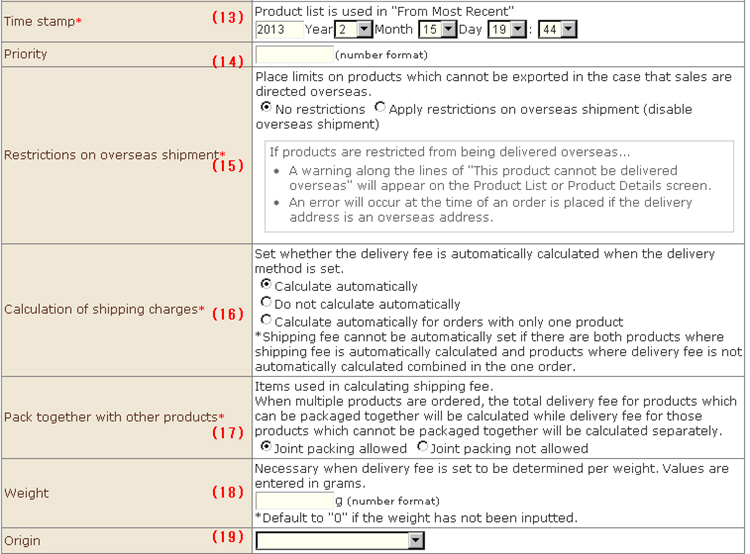
(13) Time stamp*
This is used for "incoming orders" in the product display list.
(14) Priority
Set the display order of priority of products in the product list display. The smaller the input value, the higher the priority becomes.
(15) Restrictions on overseas shipment*
Export restrictions can be applied to products that are not allowed to be exported when selling product inside and outside your country.
(16) Calculation of shipping charges*
Set whether or not to automatically calculate shipping charges based on the delivery method setting.
(17) Pack together with other products*
When packing together with other products, the combined shipping charge for all products can be calculated. When not packing together with other products, the shipping charge is calculated for one package per single product.
(18) Weight
This is required when setting shipping charges by weight. The input unit is grams (g).
(19) Origin
You can select the country of origin. This can be input to the received order information.
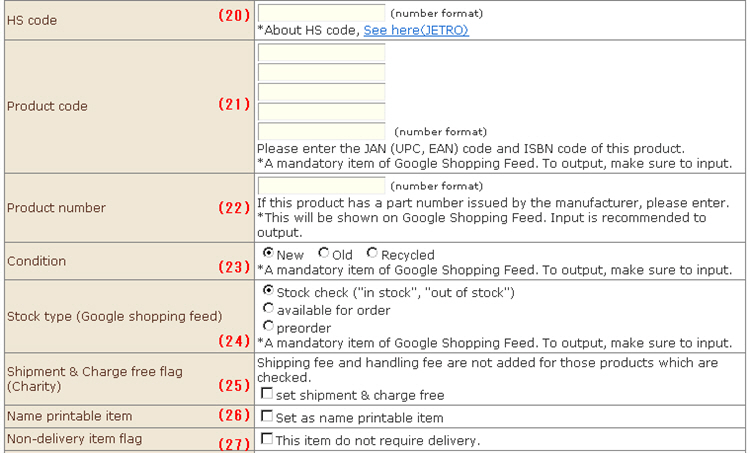
(20) HS code
You can set the HS code. This can be input to the received order information.
(21) Product code
Enter the JAN (UPC, EAN) code or ISBN code of this product.
* 21, 23 and 23 are required items for Google Shopping Feed. Be sure to enter these for output.
(22) Product number
Enter this when this product has a product number issued by the manufacturer.
(23) Condition
Select from the three conditions (new/secondhand/recycled) for the product.
(24) Stock type (Google shopping feed)
Select from the three stock types (judged in stock/back order/reserved).
In the case of judged in stock, the inventory information is automatically acquired, and in stock or not is output to the feed.
(25) Shipment & Charge free flag (Charity)
Shipping charges and commission are not charged on products this item is selected for.
(26) Name printable item
You can specify this for products on which names will be printed.When a product is to have a name printed on it, besides the addition of options (name printing information), that do not involve being put in stock, to the product, the breakdown line will be shared with each individual product even if two or more of the same product are put in the same cart.
(27) Non-delivery item flag
Select this if the product does not require delivery.
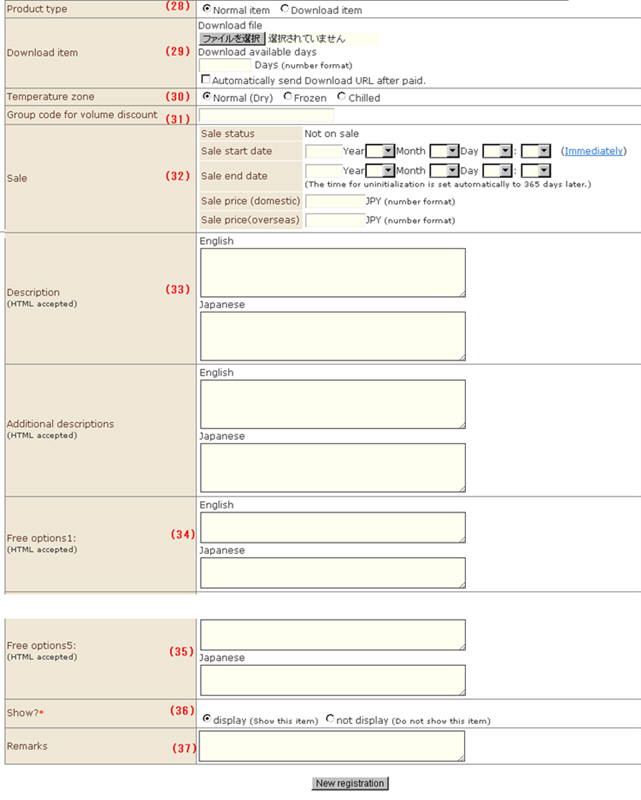
(28) Product type
※ This item is displayed only when the "download sales function" is included in the contract.
Select whether the product is a regular product (product to be distributed) or a download item.
(29) Download item
※ This item is displayed only when the "download sales function" is included in the contract.
In the case of download items, select the download item and effective number of download days.
(30) Temperature zone
Select from the three categories (general/frozen/cold storage) for the product.
(31) Group code for volume discount
This function enables fluctuation in prices depending on the number of purchased items. It enables purchasing such as "00% off a grab selection of X items." Enter the group code targeted for discounting at this item.
(32) Sale
You can set the date/time that sales are to be performed.
(33) Description (HTML supported)
List details (description) for each individual product.
(34) Free options
This product information management item can be set as desired by the customer.
(35) Show?*
Select whether or not to list products in the shopping site.
(36) Remarks
Use this item when sharing product information in the store.
3. Click the [New Registration] button.The product information is registered.