
Files on your PC (js, css, pdf, fla, swf, as, clr, act, etc.) can be uploaded to the server.
Procedure
1. Click the [Contents files manager] button on the Image Manager screen.
2. The "Contents files manager" screen opens. Select the files from your PC from the [Select image files] button.
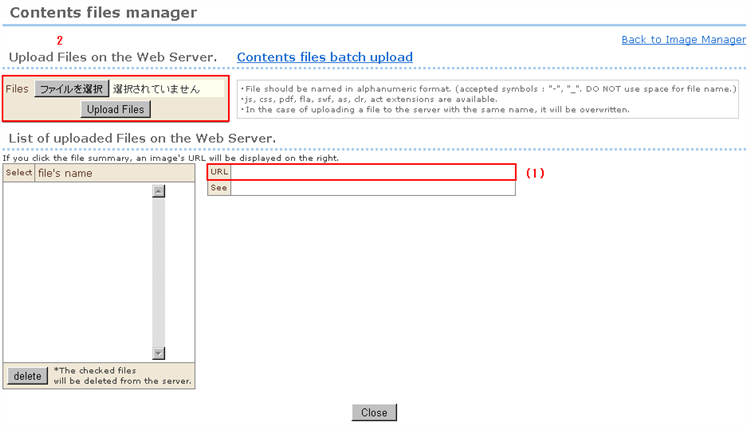
You can also used the batch upload function at the same time. This is handy if you want to upload a batch of two or more HS, CSS, Flash and other types of files. (For details, see page 00.)
3. Click the [Upload image files] button. The files are uploaded to the server.
(1) To use files at a shop, write the path displayed in the management screen in the design template.
※ Batch uploaded files cannot be edited in the management screen. To edit file contents, edit them locally on your PC and upload them again under the same file name. They will be overwritten on the server.