
Product images and images other than products on the PC can be batch uploaded to a server.
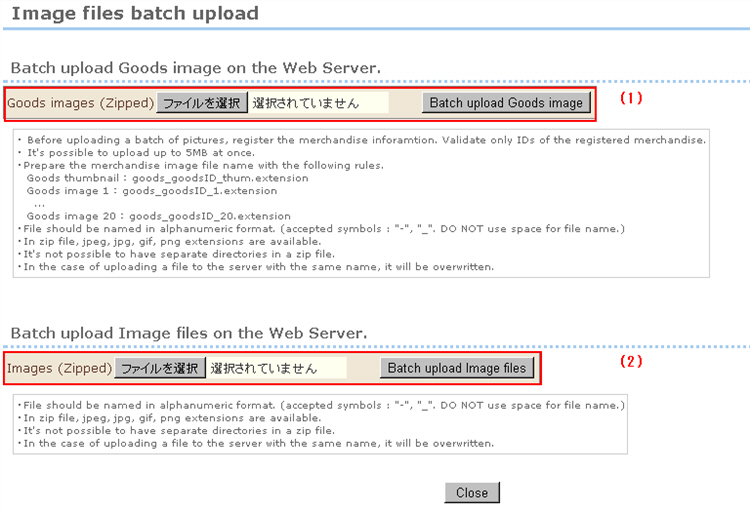
(1) Product images
・ Before batch uploading, register the product information. Only the product ID of registered products is valid.
・ The maximum size that can be uploaded in a single operation is 5MB.
・ Name product image files according to the following rules:
Thumbnail images : goods_productID_thum.extension
Product image 1 : goods_productID_1.extension
~
Product image 20 : goods_productID_20.extension
・ Use only 1-byte alphanumeric characters for file names. (Only the hyphen and underbar symbols are allowed. Spaces are not allowed.)
・ Allowed file extensions in zip files are jpeg, jpg, gif, and png.
・ Files cannot be split into two or more directories in zip files.
・ If a file with the same name exists on the server when image files are uploaded, it will be overwritten.
(2) Images
Images on your PC (image files other than product images that are used, for example, for shop template design) can be batch uploaded to the server.
・ Use only 1-byte alphanumeric characters for file names. (Only the hyphen and underbar symbols are allowed. Spaces are not allowed.)
・ Allowed file extensions in zip files are jpeg, jpg, gif, and png.
・ Files cannot be split into two or more directories in zip files.
・ If a file with the same name exists on the server when image files are uploaded, it will be overwritten.
The following describes the procedure for batch uploading product images.
Procedure
1. Compress the images.
Select the images you want to batch upload, and compress them as a zip file.
・ Do not set a password to the zip file.
・ Files cannot be split into two or more directories or located in a file hierarchy in zip files.
2. Select the compressed zip file from the [Select image files] button, and press the [Batch upload product images] button. (It will take a long time to upload the files if there are many images.)
If the upload fails, an error message will be displayed. Remedy the problem by referring to the displayed error, and retry the upload.
3. If the upload ends successfully, the number of uploaded images and the upload completion message will be displayed.
4. You can confirm the product image after the upload in the "product details" page for the respective product. (Note that product images are not displayed in the "list of image files uploaded to the server."))