Setting the optional freight setting (expenses that fluctuate by purchase amount and weight)
The freight can be set to "by product purchase amount" or "by weight of products" for each individual region. This freight is added to the basic freight.
Procedure
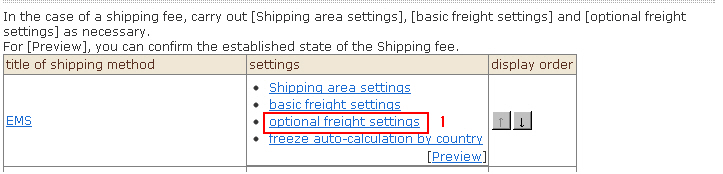
1. From the Shipping Method Settings top screen,
click [Optional freight settings].
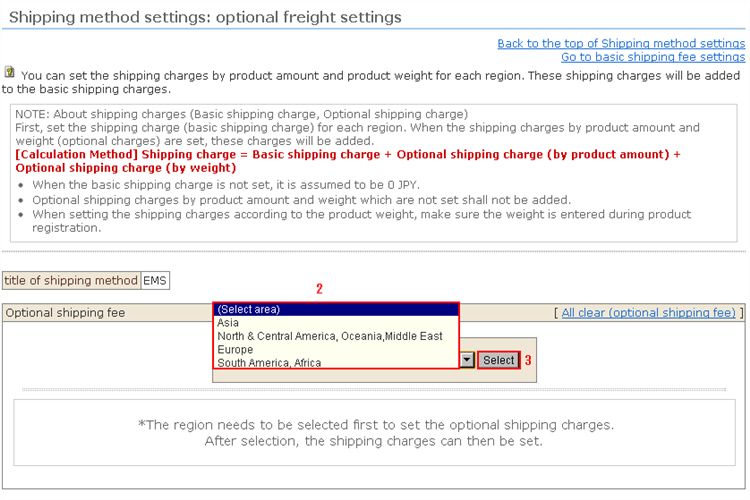
2. A pulldown menu for selecting the regions entered at "Shipping area categories" will be displayed.
Select the region you want to enter.
3. Click the [Select] button.
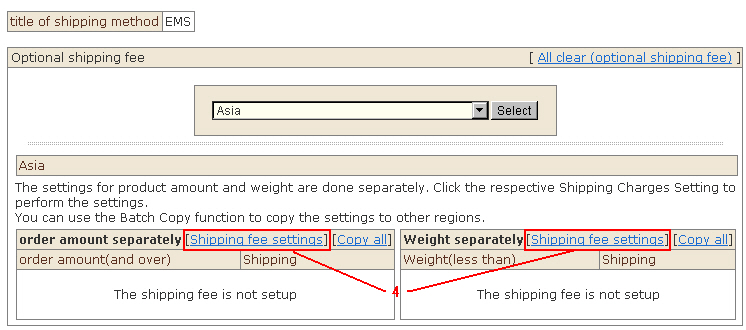
4. Click [Shipping fee settings] at items based on the amount of products and the [Shipping fee settings] at items based on the weight of products. A sub-window for entry opens.
5. Enter the optional freight for each individual amount and weight. Generally, a shipping company's freight is calculated based on whichever of weight and volume is the larger, in accordance with each shipping company's standards.
In this system, the freight calculation is done by the weight of the products alone.
※ The screen example is for optional freight by individual weight. The same applies to optional freight by individual purchase amount.
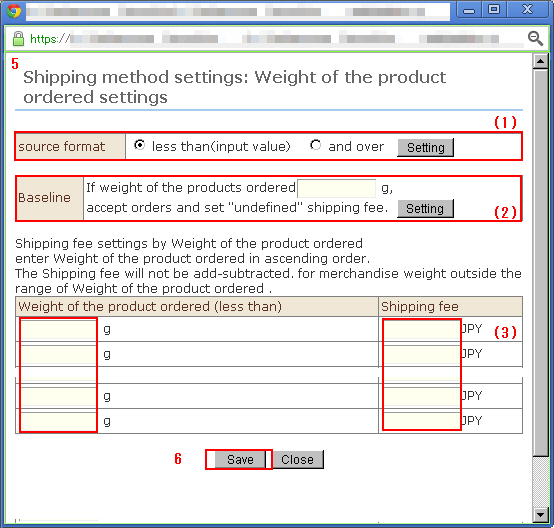
(1) Set the input format.
You can enter in one of two ways, by "(Standard weight) or less" or "(Standard weight) or more." Follow the entry rules of the shipping company you are using.
(2) Set standards for unfixed shipping costs for weights that cannot be calculated by this shipping method alone.
When the total weight at ordering is greater than the weight entered at this item, the order can be received as unfixed without calculation of the freight.
Since orders received outside the range to which freight can be set at item 3 are not calculated (i.e. become zero), we recommend entering to prevent freight calculation accidents when there is a difference between the setting range in item 3 and the maximum weight that was set at Basic Information Settings.
(3) Enter the freight for each individual weight of products.
* When using optional freight for each individual weight, be sure to enter the weight when registering the product information.
* Enter the weight of the goods in a range, starting with the smallest weight.Freight outside the range of weight of the products is not calculated.
6. When input is finished, click the [Save] button.
After the settings are saved, the display returns to the optional freight setting page. Repeat the same procedure for each region to register the optional freight.
8. Freight can also be batch copied to make entry simpler.
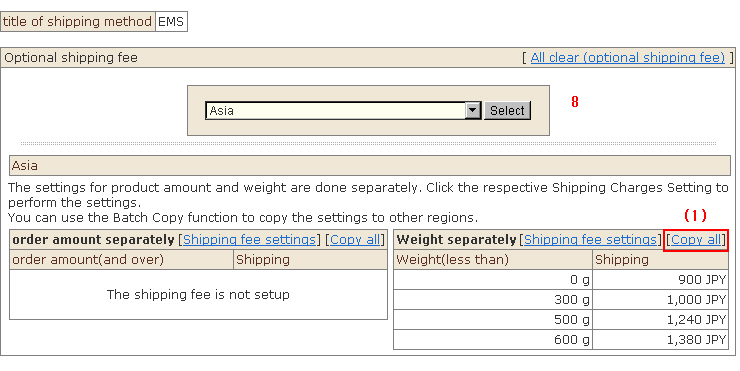
(1) Select the optional freight settings to copy from the pulldown menu, and click [Copy all].
(2) Select the copy destination region.
(3) Click the [Copy all] button.
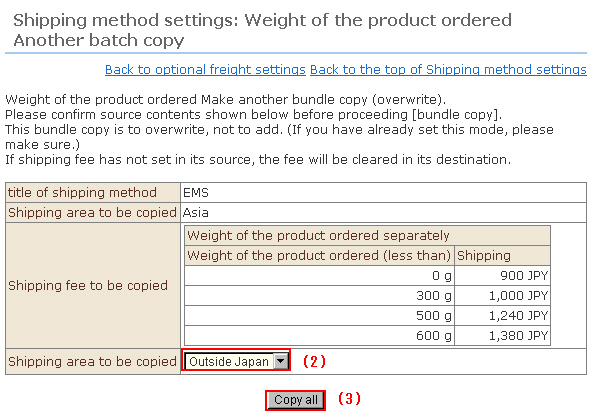
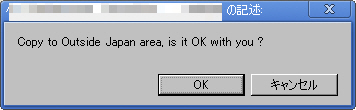
(4) The confirmation message is displayed. Click the [OK] button.