Procedure
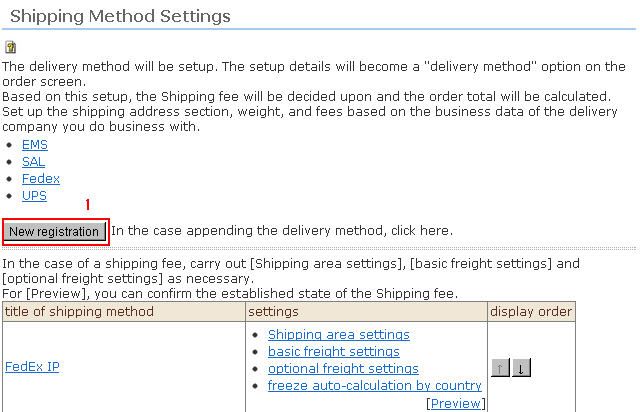
1. Click [New Registration] from the Shipping Method Settings top screen.
2. Enter the shipping method items.
[*] indicates required items.
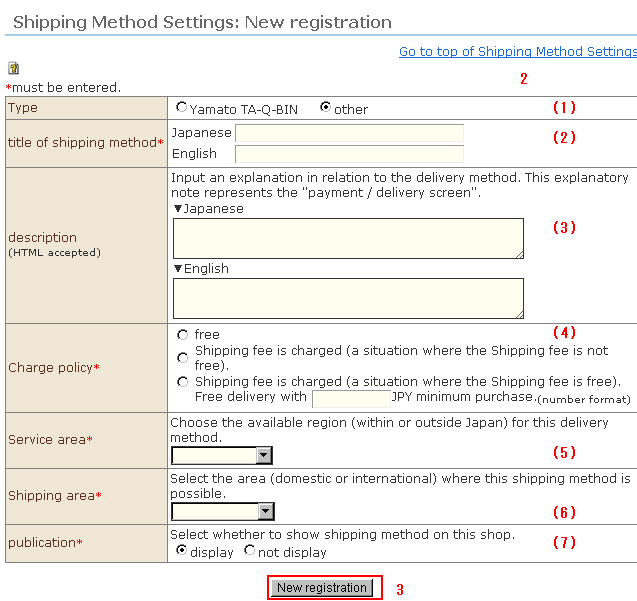
(1) Type
Select the shipping method type.
(2) Title of shipping method
Enter the shipping method title. (This is displayed on the payment/shipping fee screen.) )
(3) Description (HTML supported)
Enter a description about the shipping method. (This is displayed on the payment/shipping fee screen.) )
(4) Charge policy*
Select from "Free Shipping", "Charged (no conditions for free shipping)," and "Charged (conditions for free shipping)".
When "Charged (conditions for free shipping)" is selected, enter the amount required to qualify for free shipping.
※ When shipping is charged for, set up [Shipping area settings], [Basic freight settings] and [Optional freight settings], if necessary. You can check the setting status of the shipping fee at [Preview].
(5) Service area
Select the area to set for this shipping method. Select from [Domestic only], [Overseas only] and [Unrestricted].
(6) Shipping area*
Select ([Own country], [Outside own country], or [Unrestricted (both own country and outside own country) for areas where this shipping method can be accepted.
(7) Publication*
Select whether or not to display this shipping method on the shopping site.
When the shipping method is hidden, it can be edited, but will not be listed in the shop.
●Items (8) to (16) are added on only when "Shipping methods" at item 1 is set to "YAMATO TRANSPORT.".
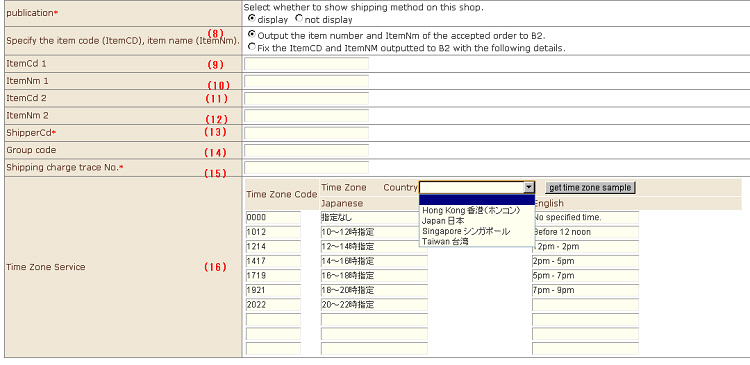
(8) Specify the item code (ItemCD), item name (ItemNm)
Set how the description of the products is to be output when outputting order information to YAMATO TRANSPORT's invoicing system "B2".
When "Output product No. and name of received order as is to B2" is selected, the product No. and name of the products will be output as "ItemCd 1", "ItemCd 2", "Product 1" and "Product 2" in B2.
When "Fix item code and item number output to B2 by following content B2" is selected, the item code and item number entered at (9) to (12) below will be output regardless of the customer's order details.
(9) ItemCd 1
(10) ItemNm 1
(11) ItemCd 2
(12) ItemNm 2
Items (9) to (12) are used only when "Fix item code and item number output to B2 by following content" is selected at item (8).
(13) Shipper Code * Required
(14) Group code
(15) Shipping charge trace No. * Required
For items (13) to (15), enter the numbers provided via your contract with YAMATO TRANSPORT. These are not displayed on the shop screen. This information is required when outputting received order data to the invoicing system.
(16) Time Zone Service
Enter this when using YAMATO TRANSPORT's time designated delivery service.
・Code: Enter YAMATO TRANSPORT's time zone code. These are not displayed on the shop screen. This code is required when outputting received order data to the invoicing system.
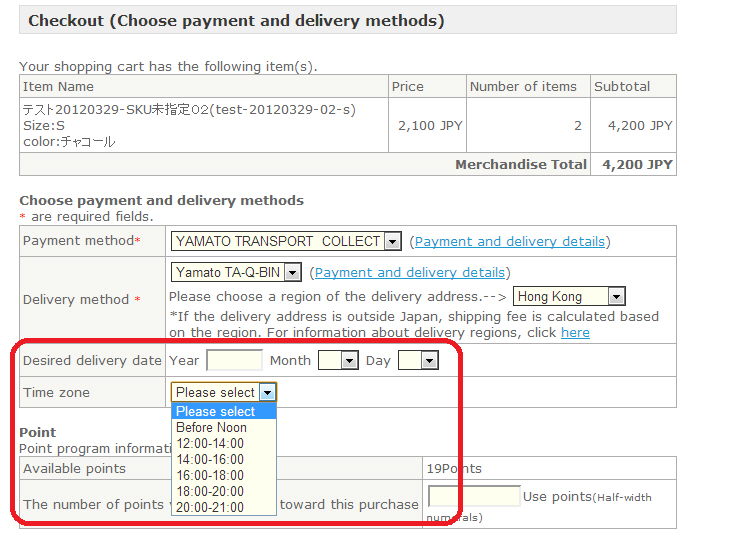
・Name: This is displayed on the shop screen, and becomes a selection option for the customer. Enter in the respective language.
Select the country you want to use from the dropdown list at the top right, and click the [Get time zone sample] button. The default values for time zone designation with YAMATO TRANSPORT in each respective country are acquired.
<Time zone service designation is displayed as follows on the shop screen>
3. Click the [New Registration] button.