With the shop authentication function, only shops to which IDs and passwords can be entered are available. However, with the IP authentication, use of shops is limited to pre-registered IP addresses only.
Use of shops can be limited to related personnel only without the need to share IDs and passwords.
***Caution***
When IP addresses are dynamically assigned, a different IP address will be assigned at the next connection attempt and so the previous authenticated connection will be disabled.
Be sure to enter only fixed IP addresses (IP address of permanently connected routers).
Confirm the fixed IP address with the system administrator or your contracted Internet provider.
If you are unsure of the fixed IP address connection, use "Shop authentication".
Procedure
1. Change the "IP Restriction" radio button to "use".
2. Input items for setting IP restriction will be displayed.
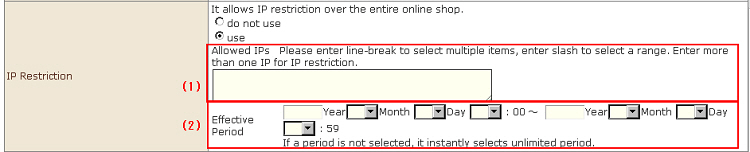
(1) Allowed IPs: Delimit with a line feed. Two or more IP addresses can be specified, and a range of addresses can be specified by a slash "/". When IP Restriction is set to "use", enter one or more IP address.
Example) 192.244.0.0/16
192.168.0.1
(2) Expiration date: This can be specified in 1-hour units. When no period has been specified, the period will instantly be regarded as infinite.
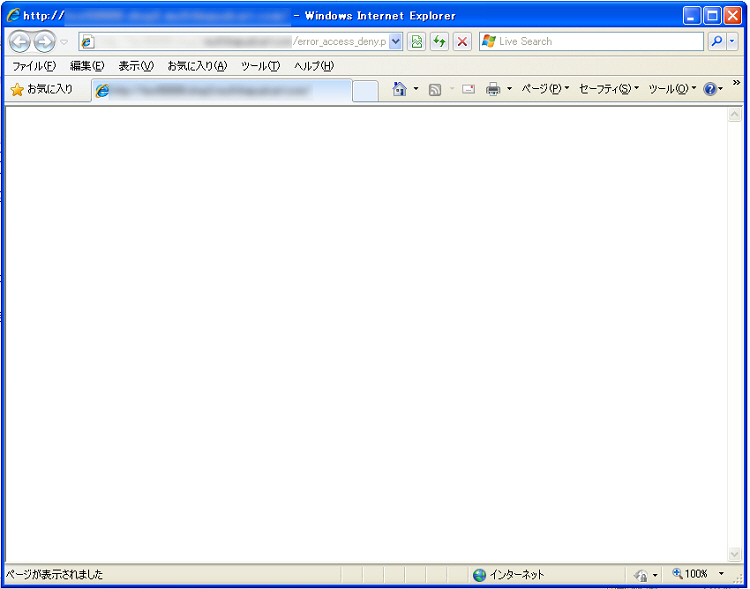
3. When IP Restriction is validated, the error screen will be displayed if a shop URL is clicked from an IP address not included in the Allowed IPs.
You can customize the content of the error screen using the "Error (IP Restriction) template, which is editable in "Design Settings".
When nothing is set, a blank screen will be displayed as follows, and the shop cannot be viewed: